Raspberry Pi Pico Examples
Examples for the Raspberry Pi Pico's dual-sided GPIO header layout.
→ All examples index | Raspberry Pi | Components | ESP32/ESP8266 | Multi-Tier
The Pico has a horizontal pin layout with pins on both the top and bottom edges.
Physical pin numbers run right-to-left on the top header (pin 1 = GP0, rightmost top)
and left-to-right on the bottom header. Use pinviz list to see the full pinout.
Board aliases: raspberry_pi_pico, pico
Pico LED Circuit
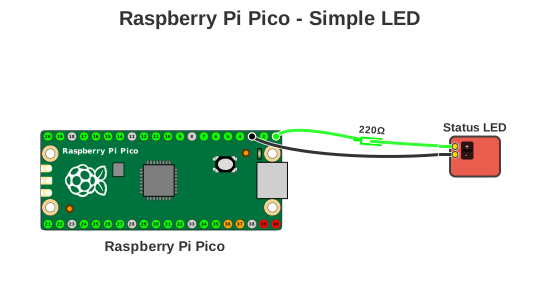
Simple LED on GP0 demonstrating GPIO pin usage and the horizontal header layout.
Configuration: examples/pico_led.yaml
title: "Raspberry Pi Pico - Simple LED"
board: "raspberry_pi_pico"

devices:
  - type: "led"
    color: "Green"
    name: "Status LED"

connections:
  # LED Anode to GP0 via 220Ω resistor
  - board_pin: 1   # GP0 (top header, rightmost pin)
    device: "Status LED"
    device_pin: "+"
    color: "#00FF00"
    components:
      - type: "resistor"
        value: "220Ω"

  # LED Cathode to Ground
  - board_pin: 3   # GND (top header)
    device: "Status LED"
    device_pin: "-"
    color: "#000000"
Generate:
Result:
Pico BME280 Sensor
I2C sensor using Pico's I2C0 bus (GP4 = SDA, GP5 = SCL). Power from the bottom header, data lines from the top header.
Configuration: examples/pico_bme280.yaml
title: "Raspberry Pi Pico - BME280 Sensor"
board: "raspberry_pi_pico"

devices:
  - type: "bme280"
    name: "BME280"

connections:
  - board_pin: 36  # 3V3 (bottom header)
    device: "BME280"
    device_pin: "VCC"
    color: "#FF0000"

  - board_pin: 38  # GND (bottom header)
    device: "BME280"
    device_pin: "GND"
    color: "#000000"

  - board_pin: 6   # GP4 (top header) — I2C0 SDA
    device: "BME280"
    device_pin: "SDA"
    color: "#2196F3"

  - board_pin: 7   # GP5 (top header) — I2C0 SCL
    device: "BME280"
    device_pin: "SCL"
    color: "#FF9800"
Generate:
Result:
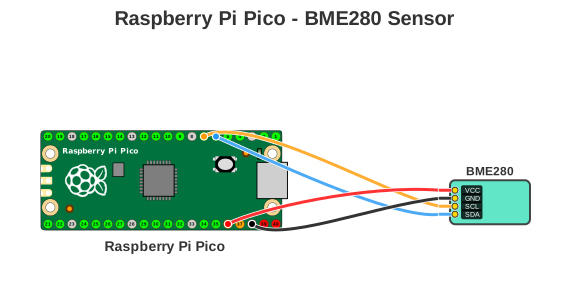
Key Features: Connections span both headers — power from bottom header (3V3, GND), data from top header (GP4, GP5).
Pico Multi-LED Circuit with Specifications
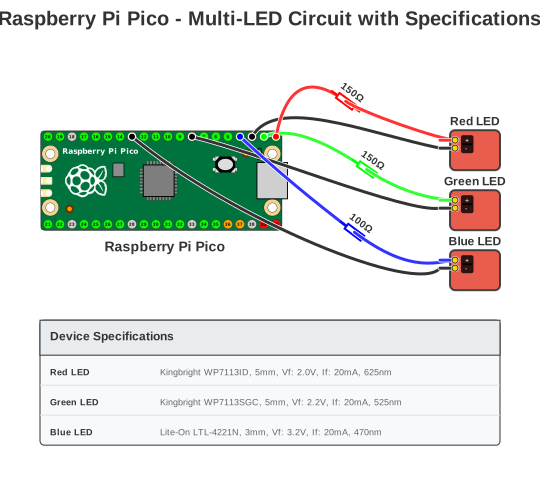
Three LEDs with resistors and component specifications demonstrating --show-legend.
Configuration: examples/pico_leds_with_specs.yaml
title: "Raspberry Pi Pico - Multi-LED Circuit with Specifications"
board: "raspberry_pi_pico"

devices:
  - type: "led"
    name: "Red LED"
    description: "Kingbright WP7113ID, 5mm, Vf: 2.0V, If: 20mA, 625nm"
    color: "Red"

  - type: "led"
    name: "Green LED"
    description: "Kingbright WP7113SGC, 5mm, Vf: 2.2V, If: 20mA, 525nm"
    color: "Green"

  - type: "led"
    name: "Blue LED"
    description: "Lite-On LTL-4221N, 3mm, Vf: 3.2V, If: 20mA, 470nm"
    color: "Blue"

connections:
  # Red LED (GP0)
  - board_pin: 1   # GP0 (top header)
    device: "Red LED"
    device_pin: "+"
    color: "#FF0000"
    components:
      - type: "resistor"
        value: "150Ω"
  - board_pin: 3   # GND (top header)
    device: "Red LED"
    device_pin: "-"
    color: "#000000"

  # Green LED (GP1)
  - board_pin: 2   # GP1 (top header)
    device: "Green LED"
    device_pin: "+"
    color: "#00FF00"
    components:
      - type: "resistor"
        value: "150Ω"
  - board_pin: 8   # GND (top header)
    device: "Green LED"
    device_pin: "-"
    color: "#000000"

  # Blue LED (GP2)
  - board_pin: 4   # GP2 (top header)
    device: "Blue LED"
    device_pin: "+"
    color: "#0000FF"
    components:
      - type: "resistor"
        value: "100Ω"
  - board_pin: 13  # GND (top header)
    device: "Blue LED"
    device_pin: "-"
    color: "#000000"
Generate:
Result:
Pico LED (Dark Mode)
Simple LED circuit on Pico with dark theme.
Configuration: examples/pico_led_dark.yaml
title: "Raspberry Pi Pico - LED Circuit (Dark Mode)"
board: "raspberry_pi_pico"
theme: "dark"

devices:
  - type: "led"
    color: "Blue"
    name: "Status LED"

connections:
  - board_pin: 1   # GP0 (top header)
    device: "Status LED"
    device_pin: "+"
    color: "#4A90E2"
    components:
      - type: "resistor"
        value: "220Ω"

  - board_pin: 3   # GND (top header)
    device: "Status LED"
    device_pin: "-"
    color: "#E0E0E0"
Generate:
pinviz render examples/pico_led_dark.yaml -o pico_led_dark.svg
# Or override theme via CLI flag
pinviz render examples/pico_led.yaml --theme dark -o pico_led_dark.svg
Result:
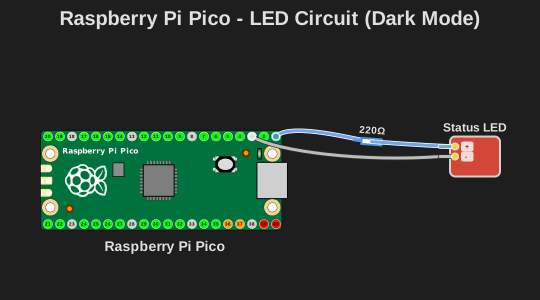
Dark mode works with Pico's dual-sided horizontal layout. See the Themes Guide for details.