Inline Components Examples
Examples showing resistors, capacitors, and diodes placed directly on wires.
→ All examples index | Raspberry Pi | Pico | ESP32/ESP8266 | Multi-Tier
Add inline components to any connection using the components key:
connections:
  - board_pin: 11
    device: "LED"
    device_pin: "+"
    components:
      - type: "resistor"   # or "capacitor" or "diode"
        value: "220Ω"
        position: 0.6      # 0.0 = board end, 1.0 = device end (default 0.5)
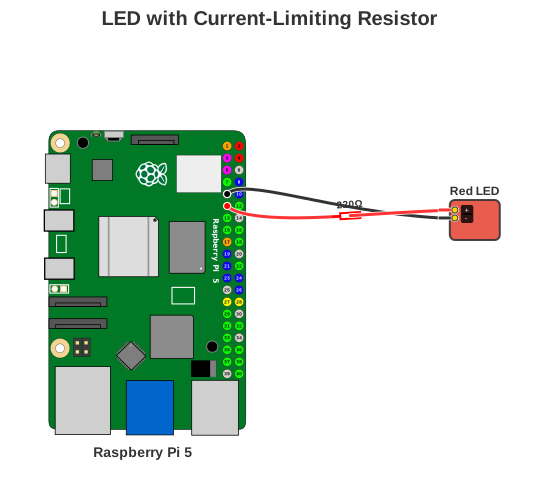
LED with Resistor
Current-limiting resistor on an LED anode wire.
Configuration: examples/led_with_resistor.yaml
title: "LED with Current-Limiting Resistor"
board: "raspberry_pi_5"

devices:
  - type: "led"
    color: "Red"
    name: "Red LED"

connections:
  # LED Anode to GPIO17 via 220Ω resistor
  - board_pin: 11  # GPIO17
    device: "Red LED"
    device_pin: "+"
    color: "#FF0000"  # Red wire
    components:
      - type: "resistor"
        value: "220Ω"

  # LED Cathode to Ground
  - board_pin: 9  # GND
    device: "Red LED"
    device_pin: "-"
    color: "#000000"  # Black wire
Generate:
Result:
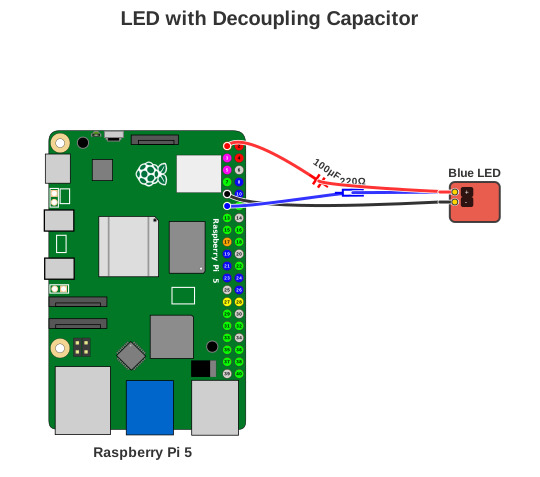
LED with Decoupling Capacitor
Capacitor on the 3.3V supply wire for noise filtering.
Visualisation note: PinViz renders inline (series) components only. A decoupling capacitor should be placed in parallel between VCC and GND in a real circuit. The example below shows the capacitor on a separate power-rail device's supply wire as a visualisation aid — do not use this as an electrical design reference.
Configuration: examples/led_with_capacitor.yaml
title: "LED with Decoupling Capacitor"
board: "raspberry_pi_5"

devices:
  - type: "led"
    color: "Blue"
    name: "Blue LED"

  - name: "Power Rail"
    pins:
      - name: "VCC"
        role: "3V3"
        position: {x: 10, y: 20}
      - name: "GND"
        role: "GND"
        position: {x: 10, y: 40}
    width: 80
    height: 60
    color: "#888888"

connections:
  - board_pin: 11  # GPIO17
    device: "Blue LED"
    device_pin: "+"
    color: "#0000FF"
    components:
      - type: "resistor"
        value: "220Ω"
        position: 0.55

  - board_pin: 9  # GND
    device: "Blue LED"
    device_pin: "-"
    color: "#000000"

  # Decoupling capacitor shown on 3.3V supply wire — visualisation only
  - board_pin: 1  # 3.3V
    device: "Power Rail"
    device_pin: "VCC"
    color: "#FF0000"
    components:
      - type: "capacitor"
        value: "100µF"
        position: 0.4

  - board_pin: 9  # GND
    device: "Power Rail"
    device_pin: "GND"
    color: "#000000"
Generate:
Result:
Relay with Flyback Diode
Inline diode component rendering on a 5V relay circuit.
Visualisation note: PinViz renders inline (series) components only. A true flyback diode must be placed in reverse-parallel across the relay coil (cathode to VCC, anode to GND) to safely dissipate inductive kickback. The example below shows the diode rendered inline on the VCC wire as a component visualisation demo — do not use this as an electrical design reference.
Configuration: examples/relay_with_diode.yaml
title: "Relay with Flyback Diode Protection"
board: "raspberry_pi_5"

devices:
  - name: "5V Relay"
    pins:
      - name: "VCC"
        role: "5V"
        position: {x: 10, y: 20}
      - name: "GND"
        role: "GND"
        position: {x: 10, y: 40}
      - name: "IN"
        role: "GPIO"
        position: {x: 10, y: 60}
    width: 80
    height: 80
    color: "#4A90E2"

connections:
  - board_pin: 11  # GPIO17
    device: "5V Relay"
    device_pin: "IN"
    color: "#9370DB"

  - board_pin: 2  # 5V
    device: "5V Relay"
    device_pin: "VCC"
    color: "#FF0000"
    components:
      - type: "diode"
        value: "1N4148"
        position: 0.5

  - board_pin: 6  # GND
    device: "5V Relay"
    device_pin: "GND"
    color: "#000000"
Generate:
Result:
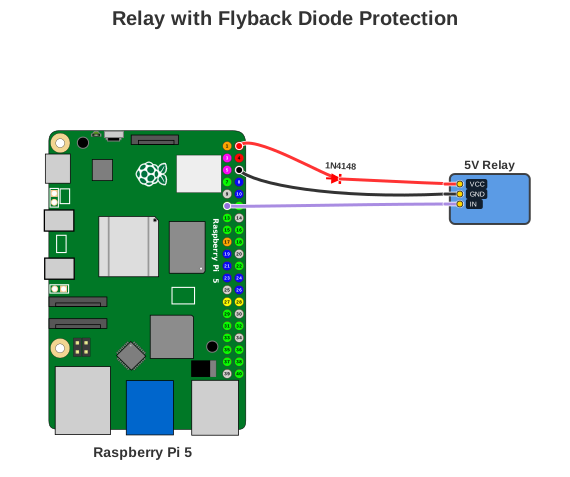
Key Features: Diode rendered as triangle with cathode bar. For real circuits, flyback diodes must be placed in reverse-parallel across the inductive load, not inline on the supply wire.
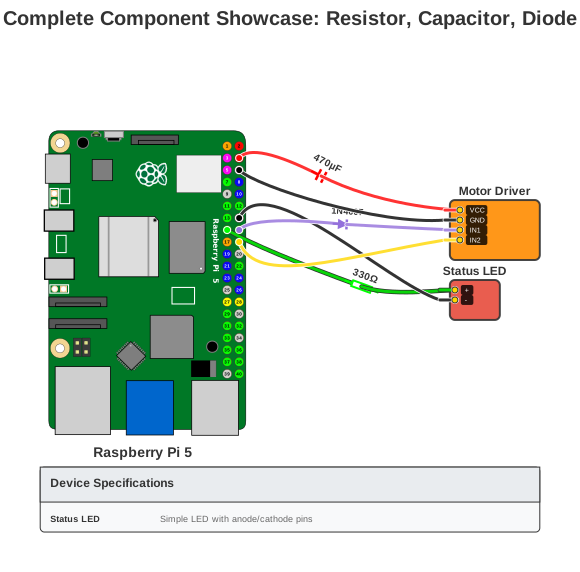
All Component Types Showcase
All three inline component types in a single diagram.
Visualisation note: This example demonstrates PinViz's component rendering capabilities, not a complete or electrically correct circuit design. Inline components are rendered in series on a wire; parallel placement (e.g., a bulk capacitor across VCC/GND, or a flyback diode across a motor) is not currently supported by PinViz.
Configuration: examples/all_components.yaml
title: "Complete Component Showcase: Resistor, Capacitor, Diode"
board: "raspberry_pi_5"

devices:
  - type: "led"
    color: "Green"
    name: "Status LED"

  - name: "Motor Driver"
    pins:
      - name: "VCC"
        role: "5V"
        position: {x: 10, y: 20}
      - name: "GND"
        role: "GND"
        position: {x: 10, y: 45}
      - name: "IN1"
        role: "GPIO"
        position: {x: 10, y: 70}
      - name: "IN2"
        role: "GPIO"
        position: {x: 10, y: 95}
    width: 90
    height: 115
    color: "#FF8C00"

connections:
  # LED with current-limiting resistor
  - board_pin: 15  # GPIO22
    device: "Status LED"
    device_pin: "+"
    color: "#00FF00"
    components:
      - type: "resistor"
        value: "330Ω"
        position: 0.6

  # Motor driver power — capacitor shown inline on VCC wire (visualisation only)
  - board_pin: 4  # 5V
    device: "Motor Driver"
    device_pin: "VCC"
    color: "#FF0000"
    components:
      - type: "capacitor"
        value: "470µF"
        position: 0.4

  # Motor driver control — diode shown inline on signal wire (visualisation only)
  - board_pin: 16  # GPIO23
    device: "Motor Driver"
    device_pin: "IN1"
    color: "#9370DB"
    components:
      - type: "diode"
        value: "1N4007"
        position: 0.5

show_legend: true
Generate:
Result:
Component Positioning Guide:
These positions control where the component symbol appears along the wire (0.0 = board end, 1.0 = device end). They are rendering hints only — PinViz inline components are drawn in series on a wire and do not represent electrically correct placement for all component types.
| Component | Typical position | Use case |
|---|---|---|
| Resistor | 0.55–0.6 | Current limiting, pull-up/down |
| Capacitor | 0.3–0.4 | Supply wire visualisation (closer to power source) |
| Diode | 0.5 | Inline diode symbol (centred on wire) |